
Sentiment Analysis is a feature available for all customers with the QuadC AI platform.
You can use Sentiment Analysis to analyze user conversations, understand sentiment trends, and improve support strategies across your institution.
By accessing the Admin Portal, selecting your analysis level, customizing categories, and running reports, you turn everyday interactions into actionable insights that strengthen engagement, optimize AI performance, and support better academic outcomes.
Access Sentiment Analysis in QuadC AI's Admin Portal
Follow the steps to access, configure, and run sentiment analysis, ensuring your insights are aligned with your goals from the start.
- Log into your QuadC AI account
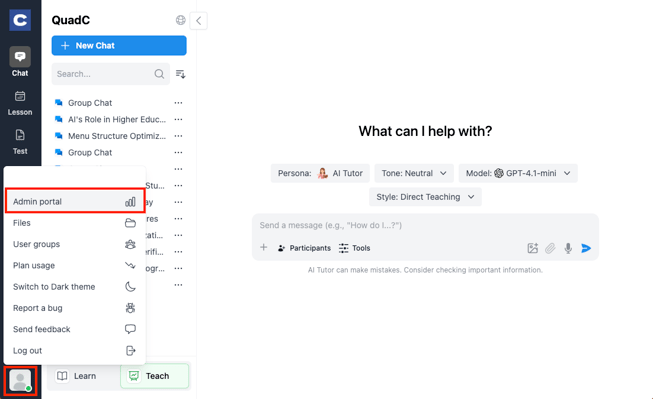
- Click on your profile image in the bottom-left corner
- Select Admin Portal
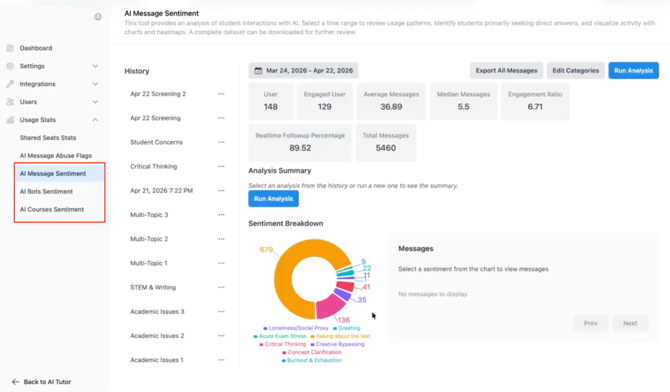
- Choose your analysis level under Usage Stats:
- AI Message Sentiment for organization-level insights
- AI Bots Sentiment to analyze a specific bot
- AI Courses Sentiment to analyze a specific course
- Select the time period you want to analyze
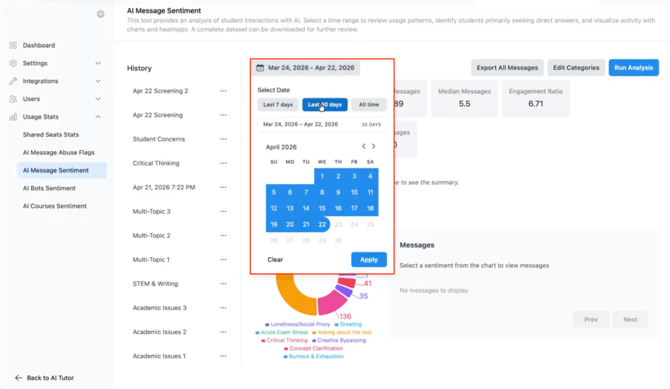
*Note: Longer time ranges may significantly increase processing time, especially when analyzing large volumes of messages. If you select an extended period, allow additional time for the analysis to complete.
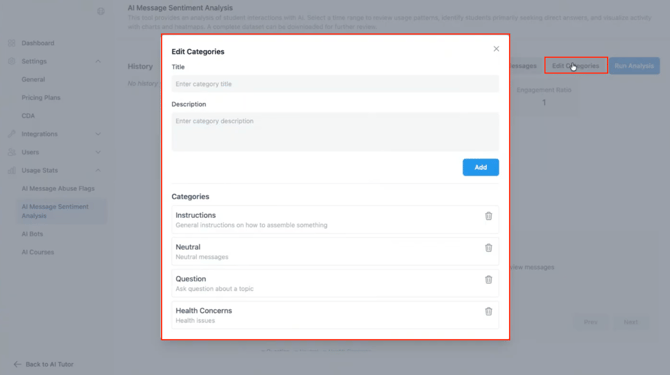
- Customize sentiment categories if needed
- Click Run Analysis to generate results
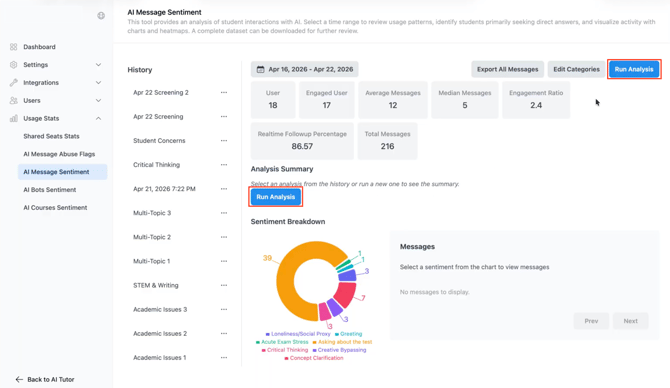
This end-to-end process ensures you move from access to insight in a single flow, fully integrated with your QuadC AI platform.
Select the Right Analysis Level for Your Goals
Choose different levels of analysis depending on whether you want a broad overview or detailed insights.
| Level | Where to Click | What You See | How It Supports You |
|---|---|---|---|
| Organizational | AI Message Sentiment | Aggregate sentiment across all users | Identify institution-wide trends and risks |
| Bot-Level | AI Bots Sentiment → Select Bot | Sentiment tied to a specific AI bot | Identify bot usage trends and learning gaps |
| Course-Level | AI Courses Sentiment → Select Course | Sentiment within a course context | Improve course-specific support strategies |
Each level connects directly to how you deploy QuadC AI, helping you refine both AI Tutor and AI Copilot experiences.
Customize sentiment categories to match your objectives
Tailor sentiment categories so your analysis reflects real user intent, not just generic emotional signals.
Custom categories you can create:
- Instructions
- Questions
- Academic confusion
- Health or well-being concerns
When creating or editing a category, you will typically work with two fields:
- Title: This is the label shown in your analysis interface. It should be clear, concise, and easy to recognize in reports and filters.
- Description: This is where you define what the category actually means. It guides QuadC AI in determining when a message should be classified under that sentiment category. A well-written description improves accuracy by helping the system understand context, intent, and nuance, not just keywords.
For example, a category like “Academic confusion” should include guidance on what qualifies as confusion, such as uncertainty about course material, difficulty understanding instructions, or repeated clarification questions.
Why customization matters:
- Align analysis with institutional priorities
- Improve how AI responds to different types of interactions
- Uncover patterns that standard sentiment models overlook
This flexibility allows your QuadC AI setup to adapt to your specific academic and support strategies.
Run analysis and interpret sentiment trends
Generate insights by running analysis on selected data, giving you a clear view of engagement and user experience.
What happens when you run analysis:
- A summary of sentiment distribution is generated
- Key patterns are highlighted automatically
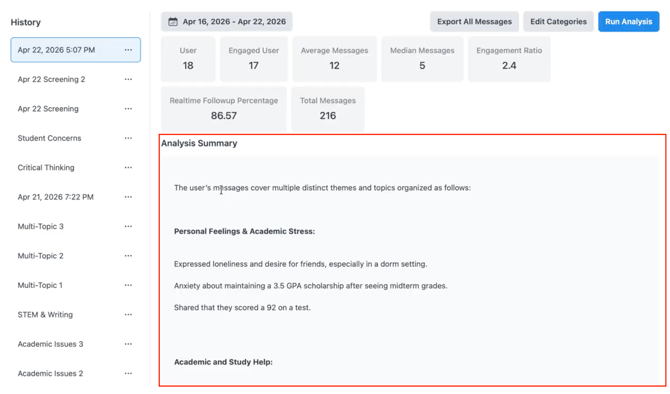
How to use these insights:
- Identify spikes in negative sentiment and investigate causes
- Track improvements after updating AI responses
- Measure engagement across courses, bots, or departments
These insights help you continuously improve how your QuadC AI Tutor and AI Copilot support users.
Explore message-level insights for deeper context
Drill down into specific messages to understand the context behind sentiment trends.
How to explore messages:
- Click on any sentiment category in the graph
- View all related messages within that category
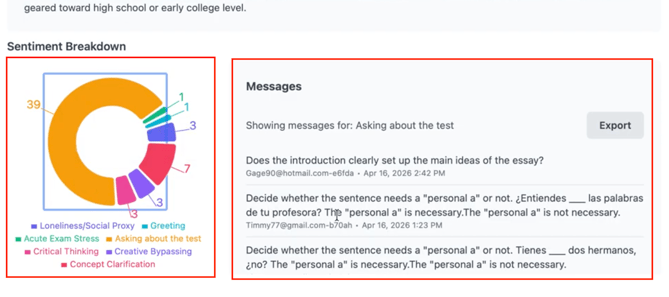
What this enables:
- Identify exact points of confusion or frustration
- Validate the effectiveness of AI responses
- Improve bot training and instructional design
Practical use cases:
- Refine tutoring prompts based on negative sentiment
- Improve knowledge coverage by analyzing questions
- Detect sensitive cases like well-being concerns early
This level of visibility ensures your AI is continuously learning and improving within the QuadC ecosystem.
Track historical analysis to measure improvement
Compare past and current analyses to understand how your AI performance evolves over time.
- Review previous sentiment analyses
- Compare different time periods
- Evaluate the impact of updates and interventions
By tracking historical data, you ensure your QuadC AI implementation delivers consistent and measurable results.
- Measure progress and improvement
- Validate AI optimization efforts
- Demonstrate impact on student success
Turn sentiment insights into proactive action
Use sentiment data to take meaningful action that improves engagement and outcomes.
- Detect early signs of disengagement
- Adjust AI responses based on real data
- Inform instructors and support teams
- Personalize support at scale
Increase student engagement, resolve issues faster, and improve academic performance by using sentiment analysis in QuadC AI, turning every interaction into actionable insight and enabling a more proactive, adaptive support system.