
Create your QuadC host account by signing up with your institutional email, completing your profile, and submitting it for review. Once approved, you are ready to start offering support through QuadC Connect.
Sign Up Using Your Institution Credentials
Register your account using your first name, last name, institutional email address, and a password. This links your profile directly to your institution.
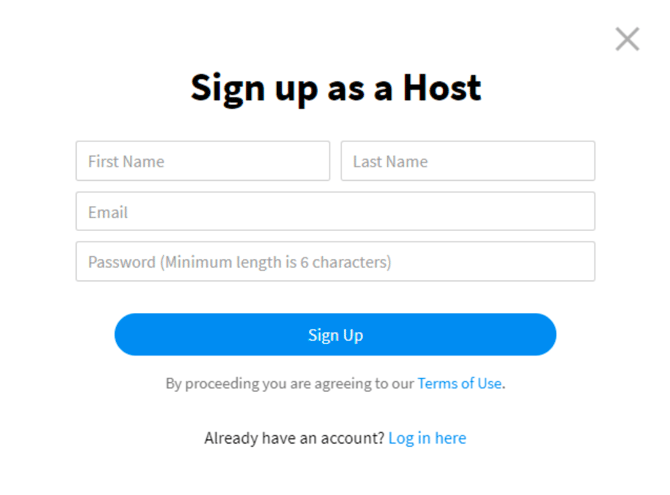
If your school provides Single Sign-On (SSO), you:
-
Use your institutional login credentials
-
Access the platform instantly without creating a separate password
Why this matters to you:
-
Your access is secure and institution-approved
-
Unlock QuadC tools that support adaptive learning and student engagement.
QuadC products are built to integrate directly with institutional systems, making onboarding simple and reliable.
Build Your Host Profile
Complete your host profile so students and administrators understand how you can help. Your profile directly impacts your visibility and credibility on the platform.
You will need to include:
-
Profile picture
-
Service selection
-
Personal information
-
School information
-
Courses and/or subjects
-
Languages
-
Availability
-
Optional integrations and media
This profile powers how QuadC matches you with students and enables more relevant, adaptive learning experiences.
Add Your Personal Information
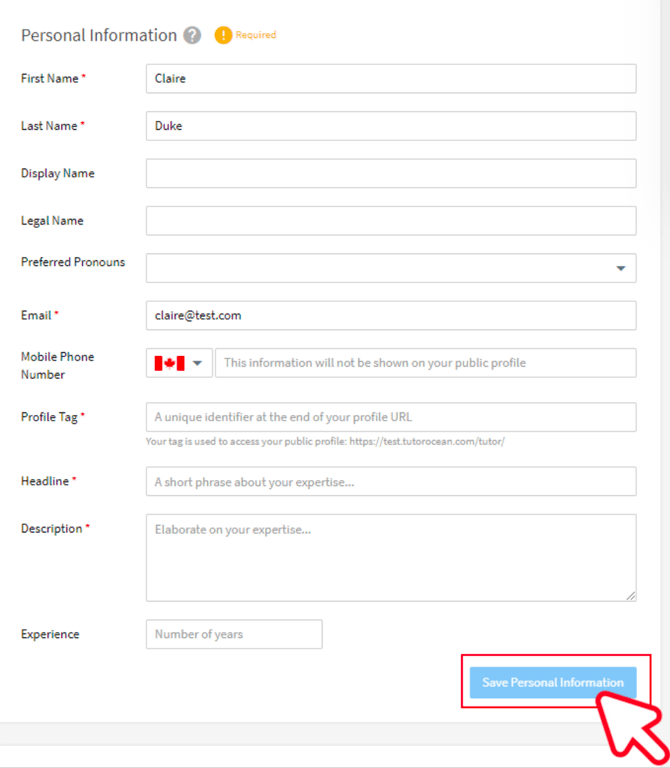
Define how you present yourself to students. This helps QuadC recommend you based on student needs.
-
Profile Tag
-
Create a unique identifier (e.g., emilytutor, funmentor)
-
-
Headliner
-
Write a short statement about what you teach and how you help
-
-
Description
-
Share your experience, skills, and teaching approach
-
Example:
“I’m a third-year Engineering student with 2 years of tutoring experience. I help students better understand chemistry, math, and physics through both in-person and online sessions.”
This information improves how QuadC AI connects you with the right learners.
Select Services, Courses, and Media
Choose what you offer and showcase your expertise.
| Section | What to Do | Why It Matters for QuadC |
|---|---|---|
| Service | Select from the dropdown menu | Defines how you support students |
| Courses/Subjects | Add relevant topics | Improves matching with student needs |
| Media | Upload videos or materials | Builds trust and engagement |
Set Your Availability
Define when you are available to support students.
-
Use the availability calendar
-
Set your preferred days and times
-
Keep it updated to avoid missed sessions
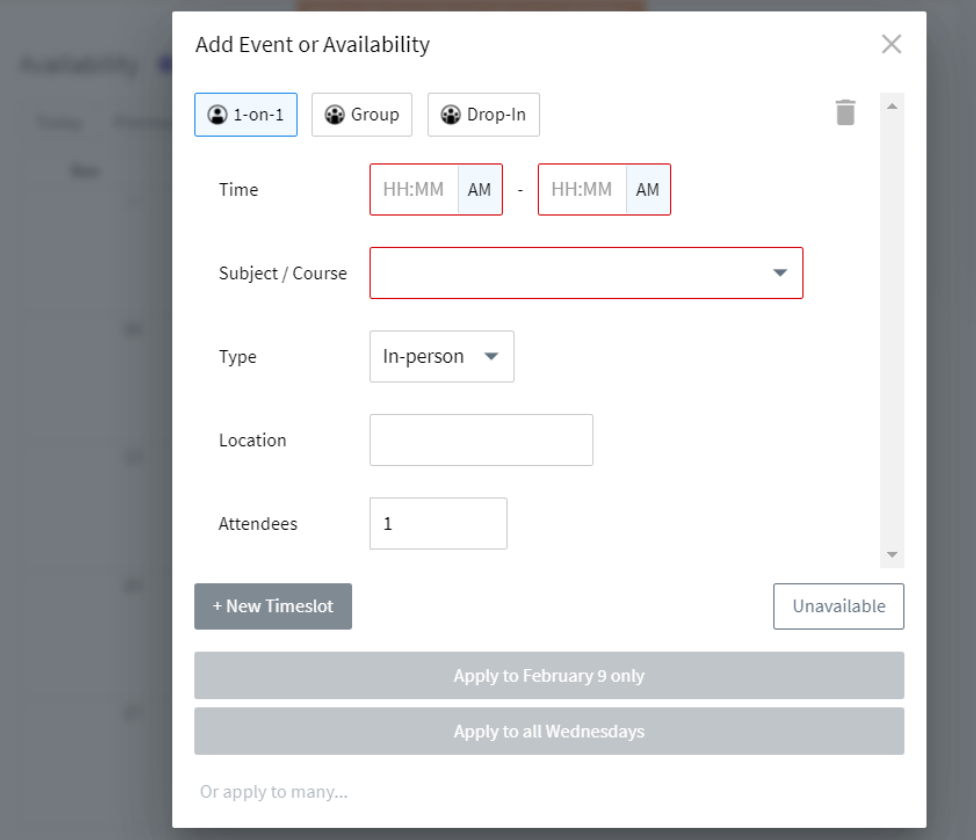
Your schedule integrates with the platform so students can easily book sessions, making support more consistent and accessible.
Submit Your Profile for Review
Once everything is complete, submit your profile for administrative approval.
-
Click Submit for Review
-
Wait for confirmation from an admin
-
If you were invited, your profile may already be approved
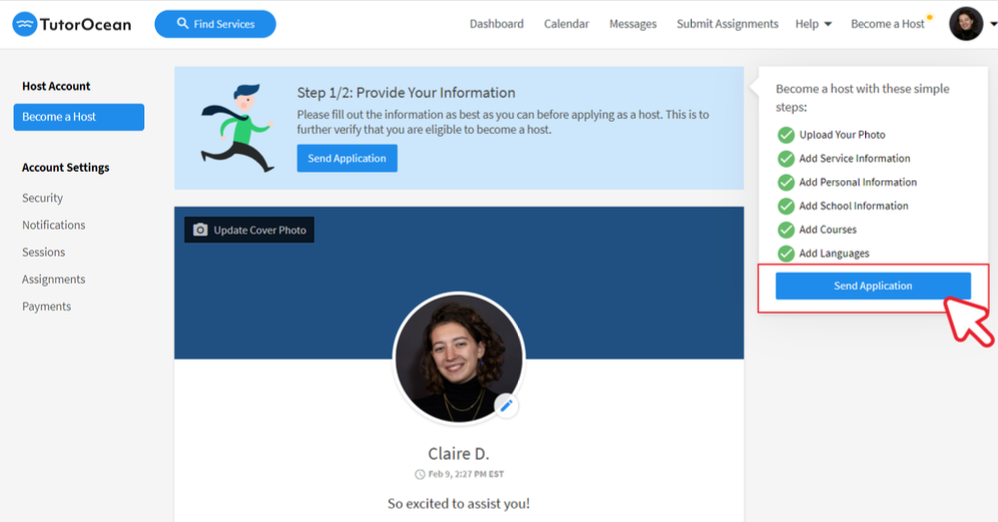
After approval, your profile becomes active, and you can start engaging with students using QuadC’s AI-powered tools.
Move Forward with QuadC
After activation, you can:
-
Engage students through structured sessions
-
Scale your impact with adaptive learning features