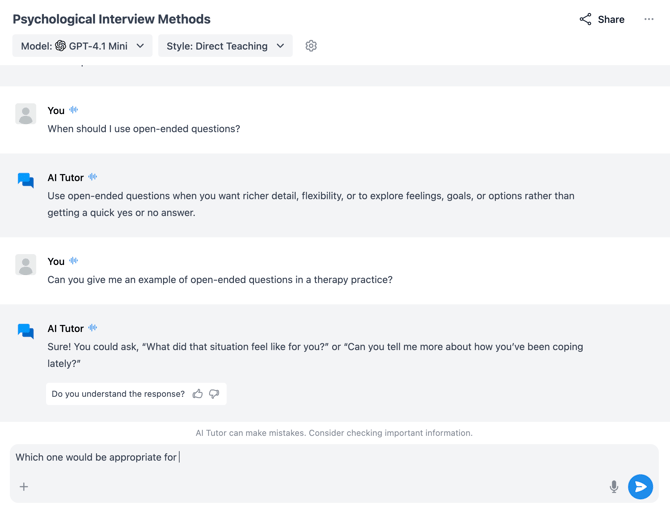
1. Starting a Voice Conversation
You can launch voice mode from any existing chat or when starting a new session:
- Open QuadC Chat: Navigate to your dashboard or open a new chat window.
- Click the Voice Icon: Next to the main input field ("Ask anything"), click the waveform/voice chat icon labeled Start voice.
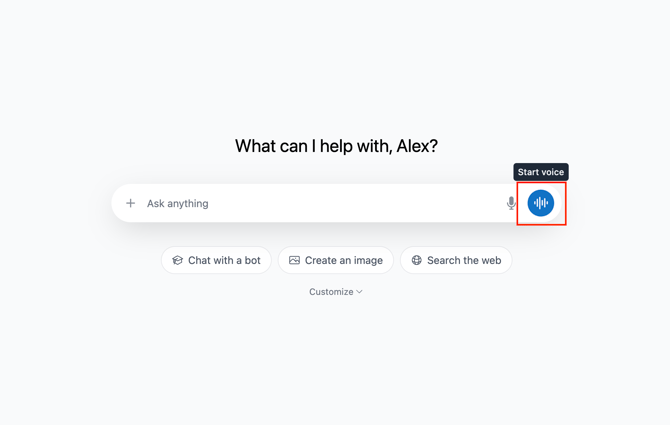
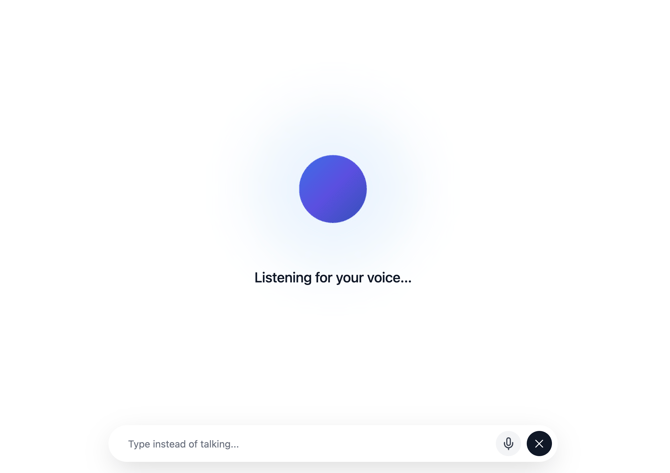
- Connect: The screen will transition to the voice interface displaying a "Connecting..." status, followed by "Listening for your voice...".
- Speak: Begin talking directly to the AI as soon as the active visualizer appears.
2. Interacting during a Voice Session
While in Voice Mode, you have flexible controls to manage your conversation:
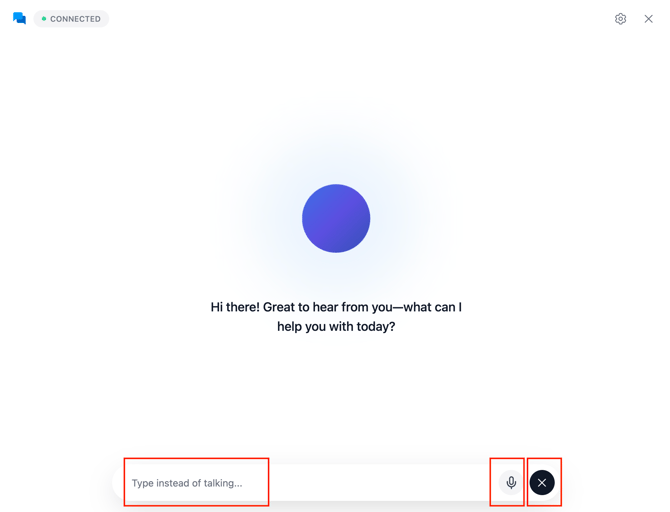
- Voice Interaction: Speak your questions naturally. The AI will respond out loud while displaying live text transcripts of its answers on the screen.
- Switch to Typing: If you prefer to type a specific prompt without ending the session, click the text bar at the bottom ("Type instead of talking..."), type your query, and press Enter or click the blue arrow. The AI will read its answer back to you.
- Mute Microphone: Toggle your microphone on or off at any time using the red microphone icon in the bottom right corner.
3. Ending and Reviewing Your Session
- Ending Voice Mode: Click the "X" button at the bottom right corner of the screen to exit the voice interface.
- Unified Chat History: All spoken questions, typed messages, and AI responses automatically save to your active chat thread. You can review, search, or continue the full transcript anytime in the standard chat view.
- Context Awareness: The AI retains full context of your previous messages, attachments, and chat history—allowing you to seamlessly switch back and forth between voice and text without losing your place.