
Join a session and access an interactive online classroom where you collaborate in real time using whiteboards, editors, file sharing, and screen tools. You can draw, upload files, communicate, and save your work, all within a single session.
Access the Classroom
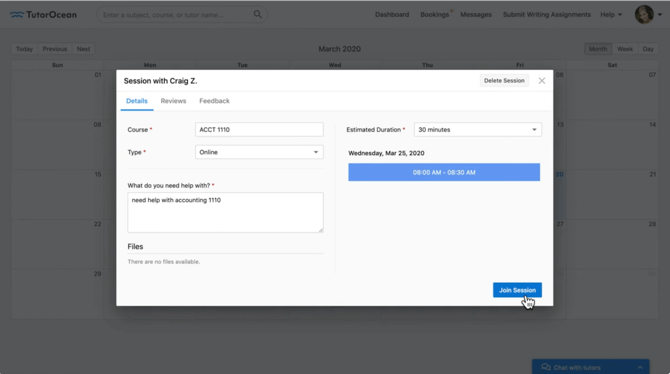
Once you join a session, you are taken directly into the online classroom environment where all collaboration happens.
-
Enter through the session link or dashboard
-
Instantly connect with other participants
-
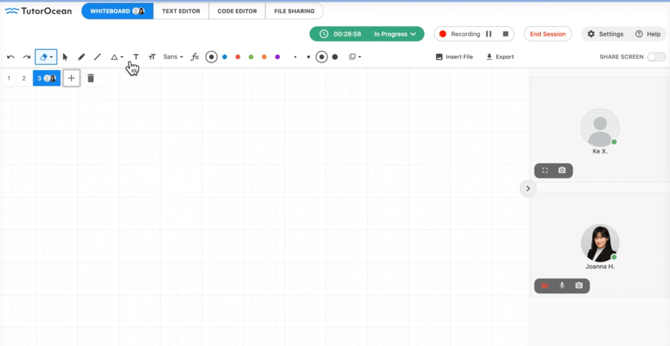
View shared tools and active collaborators
Use the Interactive Whiteboard
The whiteboard lets you and others work together visually in real time.
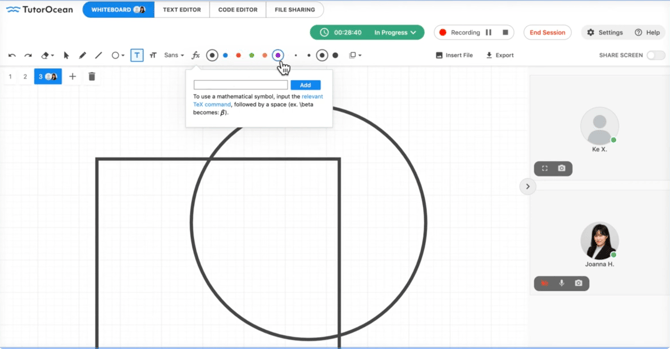
Key actions you can take:
-
Draw freely using the pencil tool
-
Erase specific content or clear the entire board
-
Add multiple boards and switch between them
-
See participant cursors to follow collaboration live
Customize your whiteboard:
| Feature | What You Can Do |
|---|---|
| Shapes | Insert and edit diagrams |
| Text | Adjust font size and formatting |
| Math formulas | Add equations directly |
| Styling | Change colors and line thickness |
| Background | Switch to blackboard or other views |
Add and Work with Files
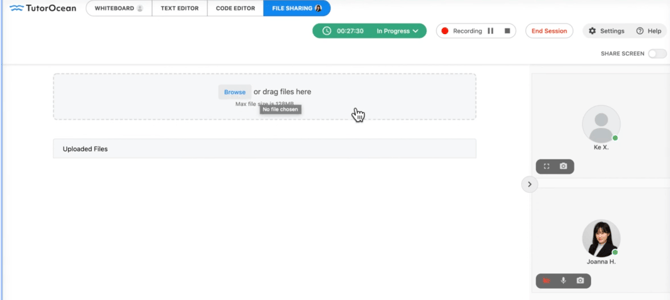
You can bring in external content and collaborate on it directly.
-
Drag and drop files onto the whiteboard
-
Upload files during or before the session
-
Edit and review content together in real time
-
Download files to your computer after working on them
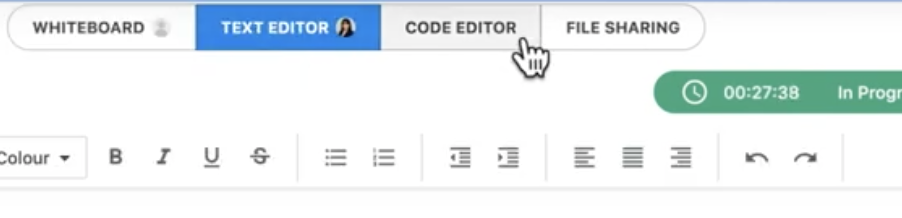
Switch Between Collaboration Tools
The classroom includes multiple tabs so you can choose how to work.
-
Whiteboard for visual collaboration
-
Text Editor for writing and notes
-
Code Editor for programming tasks
-
File Sharing for uploading and accessing documents
Manage Session Settings and Support
You can control your session setup and get help when needed.
-
Adjust audio, video, and screen sharing in Settings
-
Share your screen at any time
-
Access Help to submit support requests
Save and Export Your Work
Before leaving, make sure your work is saved and accessible.
-
Export whiteboard content as a file
-
Files are typically downloaded to your default folder
End the Session Properly
You can end the session early if needed, with a reason provided.
Steps to end a session:
-
Click End Session
-
Select or enter a reason
-
Confirm to close the session
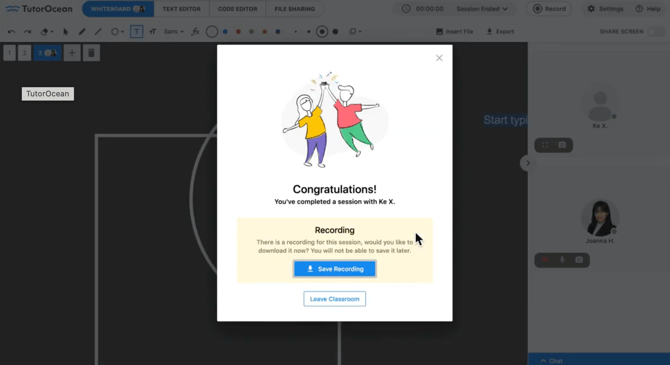
After ending:
-
Save your recording if applicable
-
Exit the classroom safely
Summary of Key Actions
-
Join a session and enter the classroom
-
Collaborate using whiteboard and tools
-
Upload, edit, and download files
-
Adjust settings and share your screen
-
Save your work and end the session properly.