
Add and manage your availability directly from your profile or calendar, making it easy to control when students can book sessions. By setting clear time slots and session types, you ensure students can find and join the right support at the right time, all within QuadC Connect.
Add Availability From Your Profile
You can create and manage time slots directly from your profile. This is the most structured way to control your schedule and align it with how you deliver support through QuadC Connect.
Follow these steps:
-
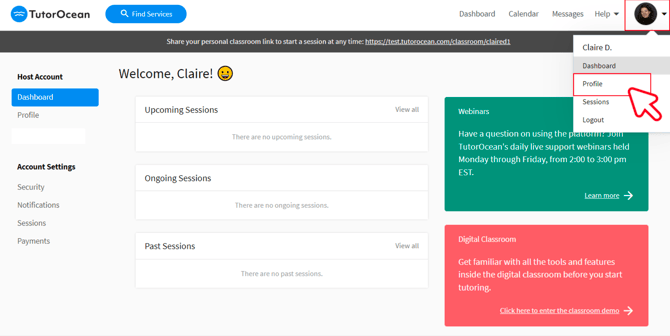
Click your profile icon
-
Select Profile
-
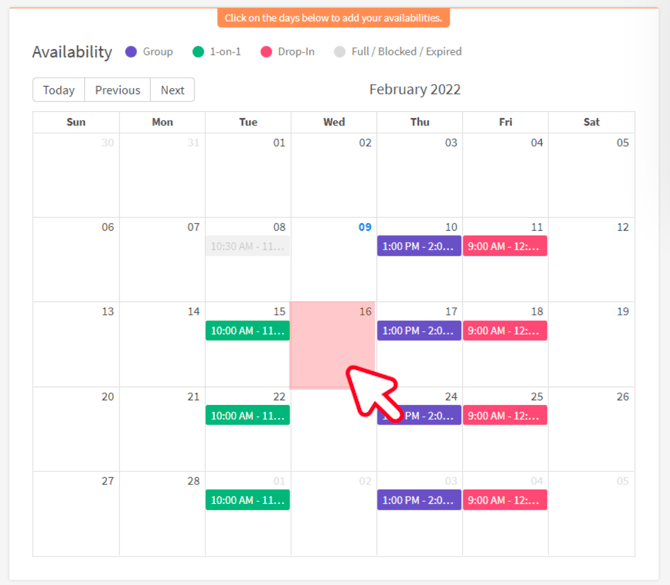
Scroll to the Availability calendar
- Click on a date
-
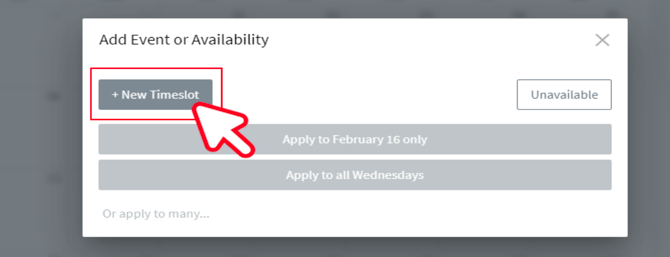
Select New Timeslot
-
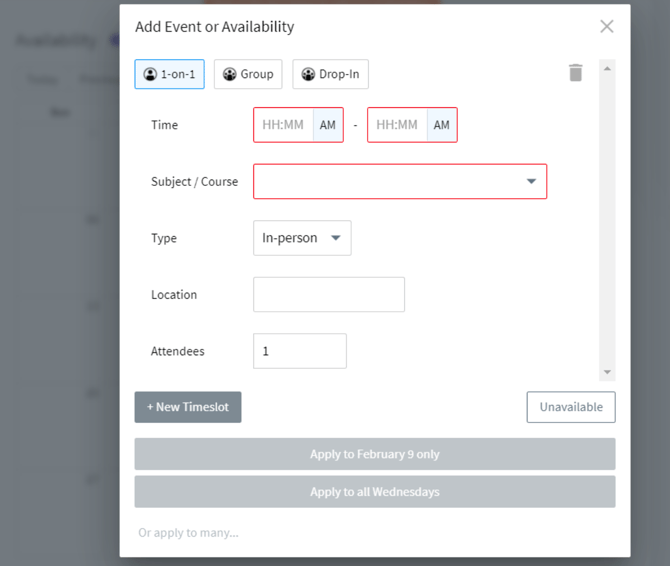
Fill out all required fields
Time Slot Color Meanings
| Color | Meaning |
|---|---|
| Purple | Available for group sessions |
| Green | Available for full or partial session length |
| Pink | Available for drop-in sessions |
| Grey | Unavailable, expired, or fully booked |
These visual indicators help you quickly understand and optimize your schedule, ensuring your availability aligns with student demand and your teaching goals on QuadC.
Add Availability From Your Calendar
You can also create time slots directly from your calendar for a faster, more visual workflow.
Follow these steps:
-
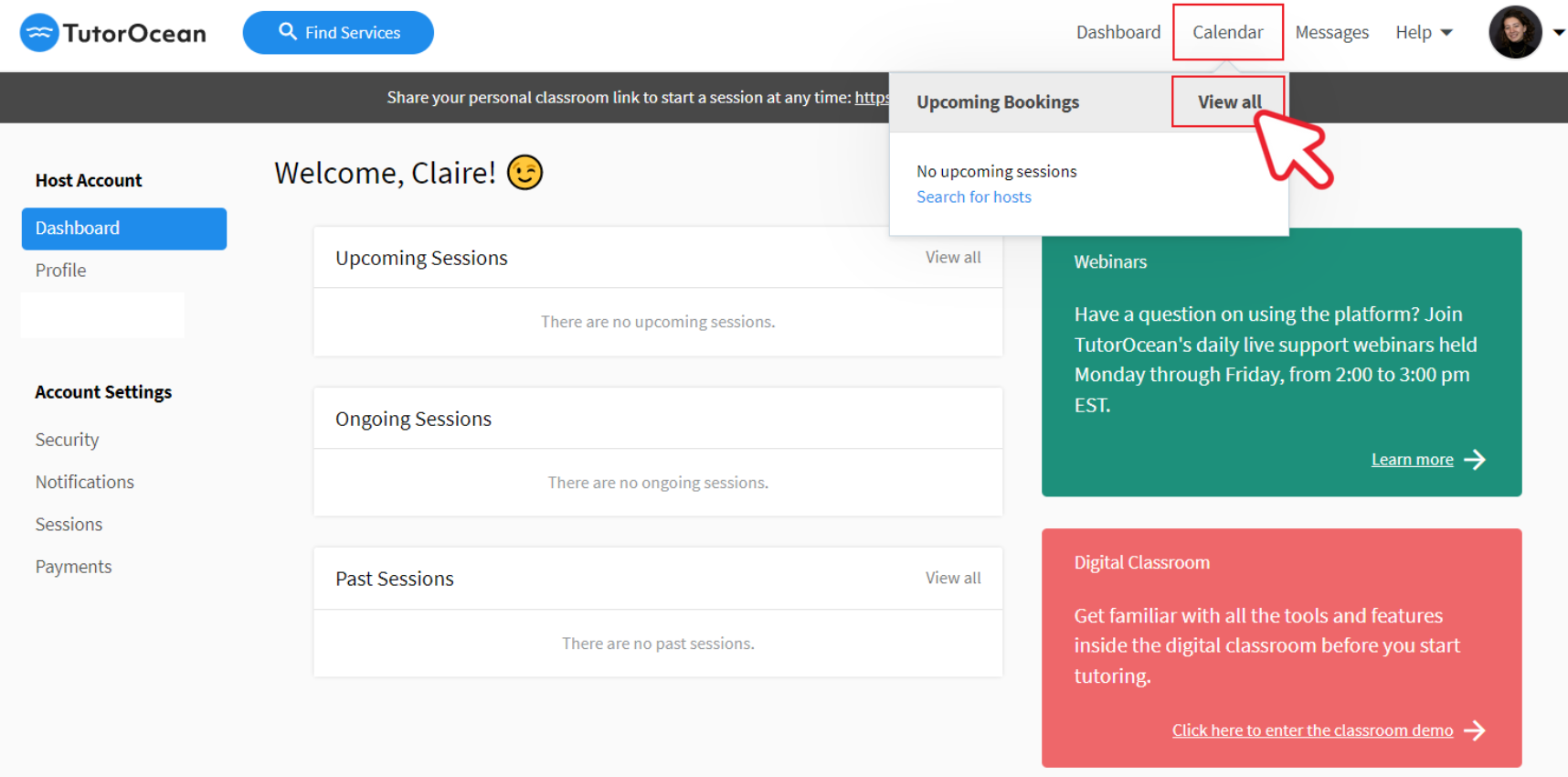
Click Calendar
-
Select View All
-
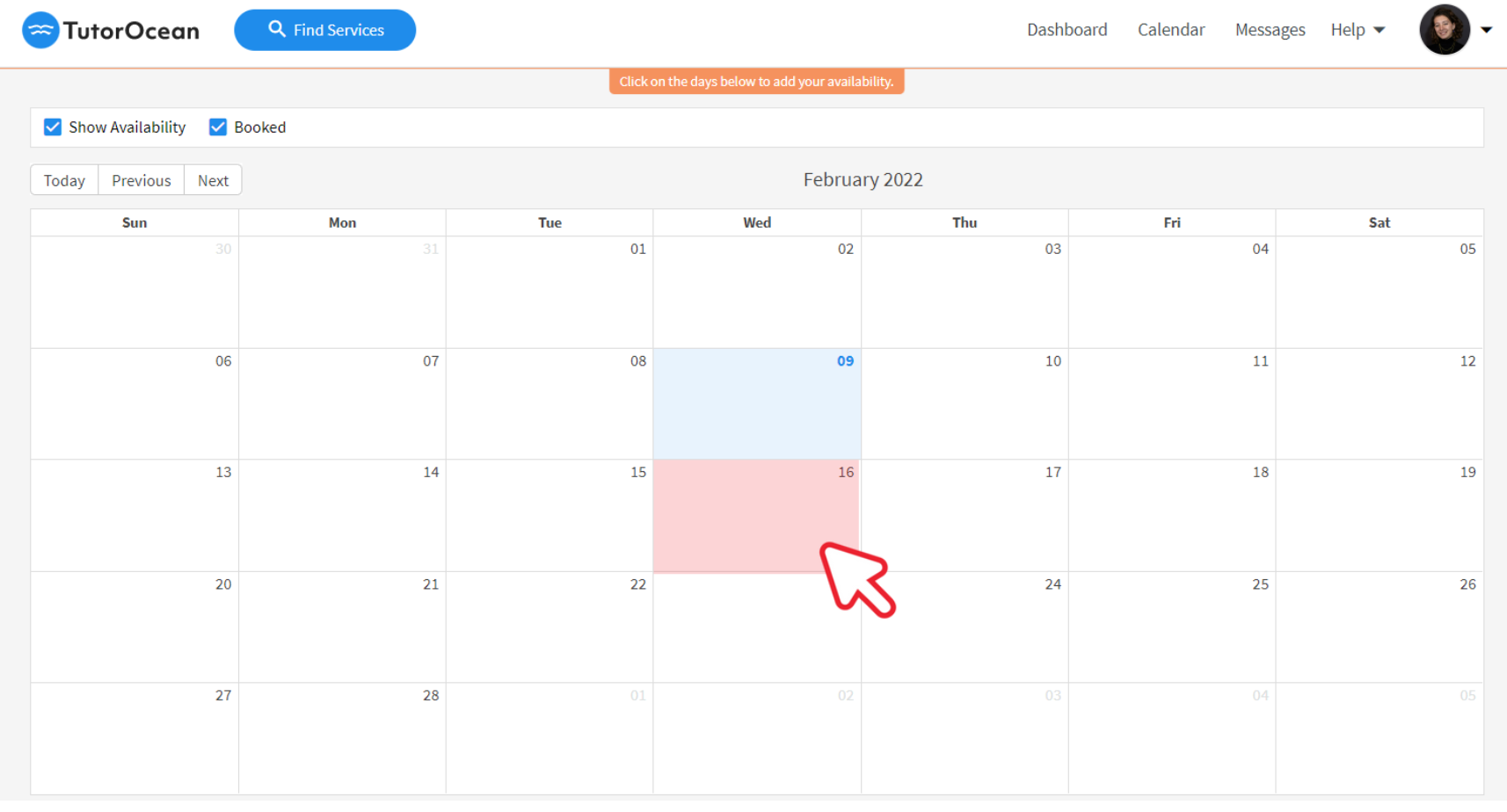
Click on a date
-
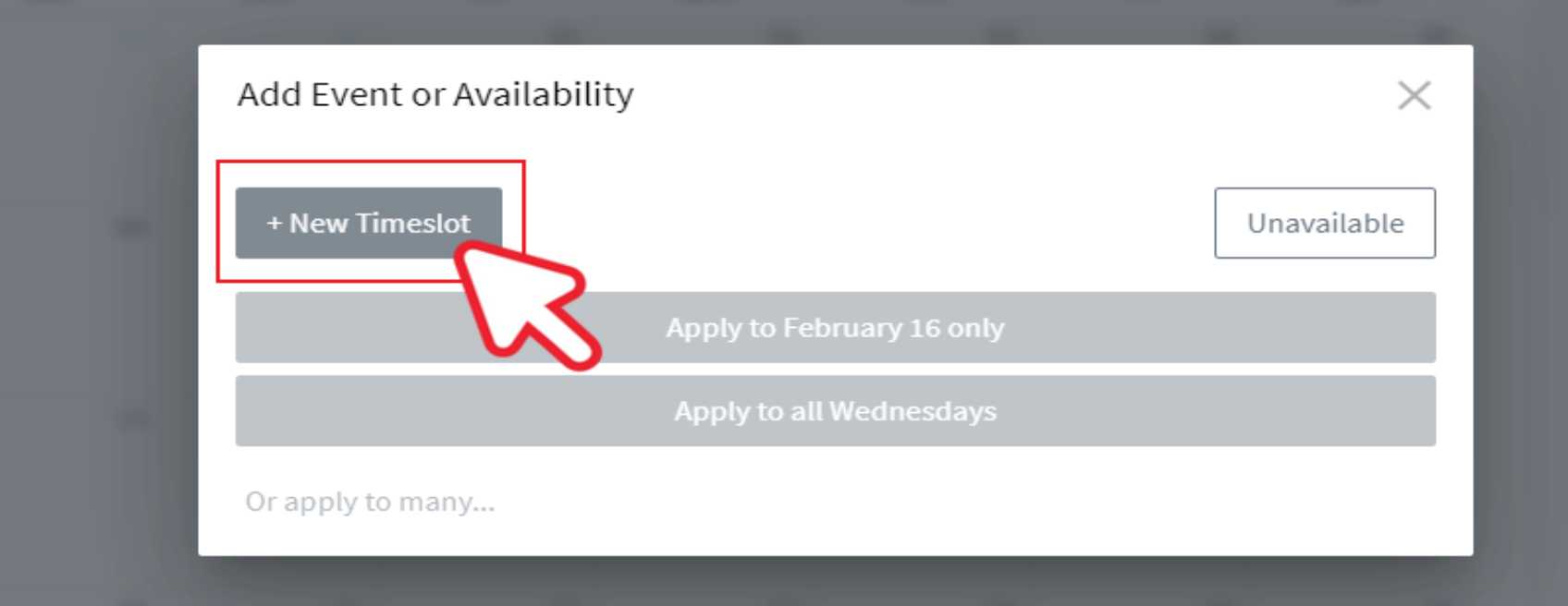
Select New Timeslot
-
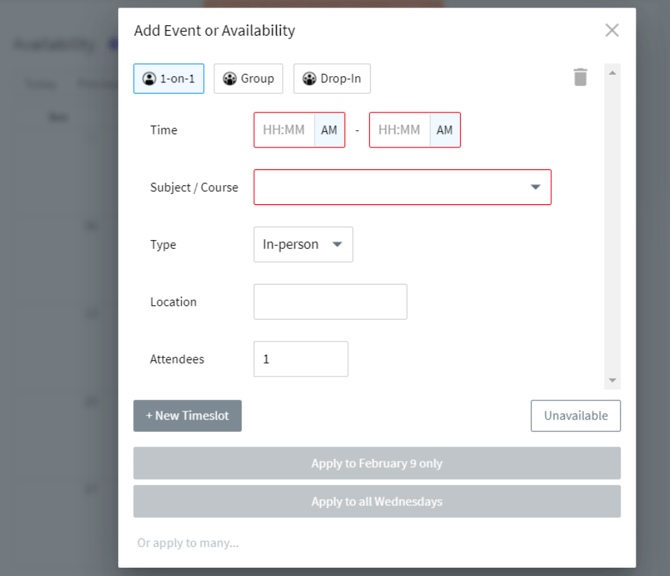
Fill out all required fields
This method is useful when you want a broader view of your schedule and need to quickly adjust availability across multiple days.
Choose How Changes Apply to Your Schedule
When editing or creating time slots, you control how changes are applied across your schedule.
-
Apply to only → updates a single selected time slot
-
Apply to all → updates all future recurring time slots
This flexibility allows you to efficiently manage recurring availability while still adapting to one-off changes, helping you maintain consistency across your sessions.
Select the Right Session Type for Your Availability
Each time slot requires a session type. Choosing the right one ensures students know how to engage with you.
Session Types
-
1-on-1
-
Booked in advance
-
One student per session
-
Ideal for personalized support
-
-
Group
-
Booked in advance
-
Multiple students join
-
Scales your time across more learners
-
-
Drop-in
-
No advance booking required
-
Students join when the session starts
-
Best for flexible, real-time help
-
Each option supports different teaching styles and use cases, allowing you to deliver adaptive learning experiences through QuadC.
Connect Availability to Better Student Engagement
Setting clear availability does more than manage your time. It directly improves how students interact with your sessions.
-
Students can easily find and book the right session type
-
Your schedule stays organized and predictable
-
You can balance 1-on-1, group, and drop-in support efficiently
-
You maximize participation and reduce missed opportunities
Each availability setting you configure helps create a more consistent, accessible, and effective learning experience within QuadC Connect.