
Overview
Closing the loop on student risk requires a centralized, holistic view of the student experience. QuadC Early Alerts product features a 360° Student Health View gives frontline advisors complete context, from historical interactions and attendance to real-time assignment trends, ensuring personalized and effective student support.
Step 1: Navigating your Active Cases in Early Alerts
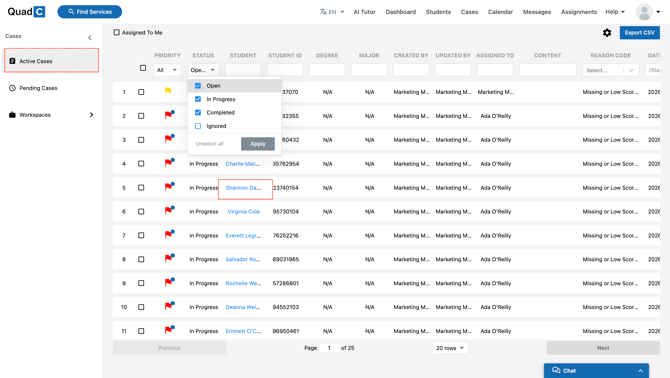
From the Active Cases tab, click any student profile to access their full Early Alerts profile:
- 360° Health Dashboard: View overall risk scores, contact details, enrolled courses, current assignment scores, and real-time academic trends across all classes.
- Sessions Tab: Track past, ongoing, and upcoming appointments across all campus support offices (advising, tutoring, career services, etc.).
- Notes Tab: Read timestamped interaction logs created by other staff members, or document new touch points to maintain continuity of care.
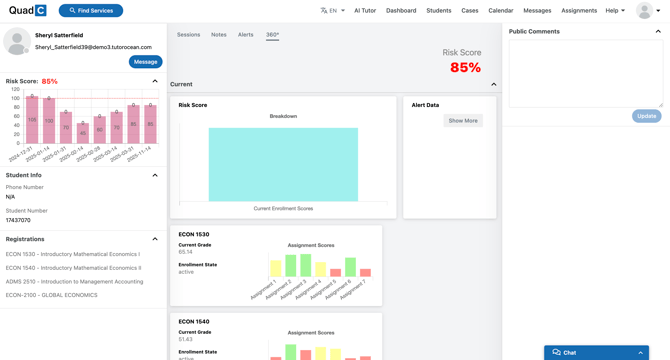
Step 2: Managing Open Alerts & Creating Action Plans
- Click the Alerts tab within a student's profile to view active and resolved interventions.
- Select Manage Alert to view details including who raised the alert, assigned owners, department routing, risk reasons, and internal notes.
- Click Create Action Plan to map out a clear path to recovery for the student.
- Title & Description: Define clear goals (e.g., "Midterm Academic Recovery Plan").
- Action Steps: Add actionable, trackable tasks for the student or advisor (e.g., "Book Math Tutoring Session," "Schedule Financial Aid Review," "Submit Academic Goal Sheet").
- As the student completes each milestone, check off tasks directly within the action plan to update their case status.
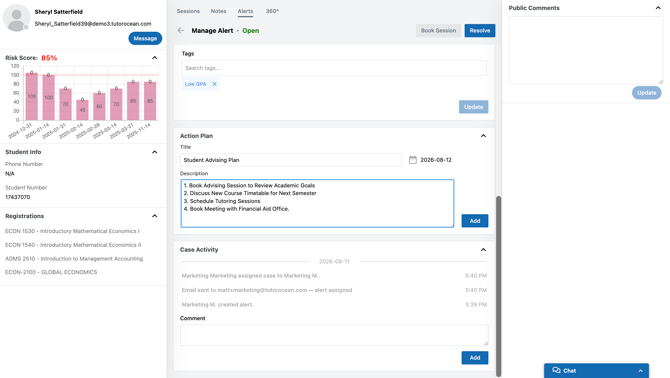
Step 3: Tracking Case History & Resolving Alerts
- Scroll to the Activity Stream within any active alert to view a complete audit trail, including creation dates, assigned advisors, action plan milestones, and status changes.
- Once the risk factors have been mitigated, update the alert status to Resolved.