
Overview
In higher education, speed-to-intervention is critical. Within the QuadC Early Alerts product, the Pending Case workflow acts as an administrative quality-check layer, allowing advising leaders to standardize care, assign targeted institutional services, and route cases to the correct specialists without administrative bottlenecks.
How to Review and Approve Pending Cases
- Navigate to the Pending Cases tab on the main navigation menu.
- Click any row to review a pending request submitted by an administrator or AI rule.
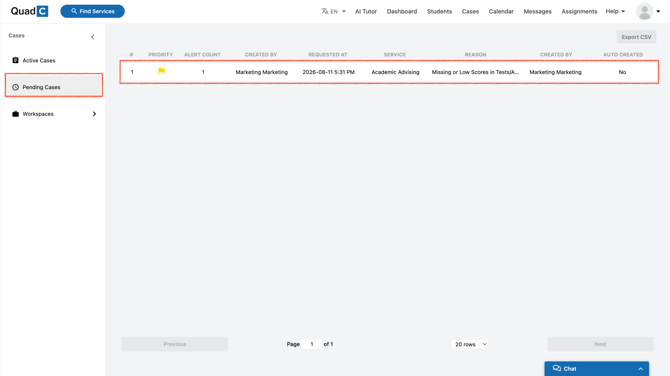
- In the Approve Pending Cases modal, review:
- Who submitted the request.
- Suggested support services and staff comments.
- Relevant tags and the list of impacted students.
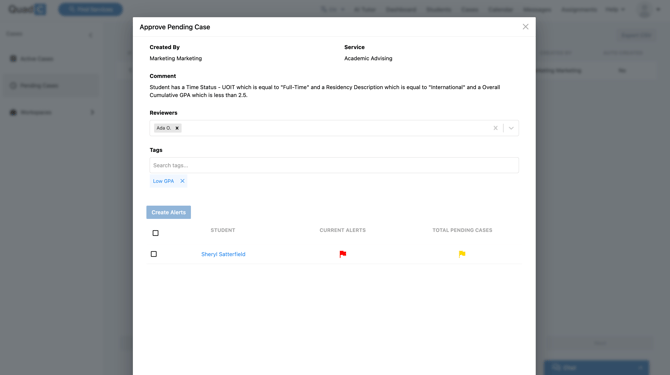
How to Convert Pending Cases into Active Alerts
- Select one or multiple pending cases from the queue.
- Click Create Alert.
- In the configuration pop-up, review the auto-populated details (carried over from the pending case stage).
- Refine details as needed to ensure clear instructions for frontline staff:
- Service Department: Route to Advising, Counselling, Mentoring, Tutoring, Peer Mentoring, etc.
- Priority Level: High, Medium, or Low.
- Reason & Course Context: Select the underlying trigger (e.g., midterm grade, attendance drop) and associated course code.
- Comments & Tags: Add specific instructions or metadata for staff tracking.
- Click Submit Alert. Approved cases immediately move to the Active Cases dashboard.