
You can book a session directly from QuadC Connect's List View by searching for a subject, course code, or host name, reviewing the host’s profile, selecting an available time slot, and confirming your booking. Everything happens inside your QuadC environment, so you can quickly find the right support and secure your session without leaving the platform.
This process is fully integrated into the QuadC platform. If you are using QuadC AI or other products, booking a session connects you to real human support that complements your adaptive learning experience.
Access Find Services from Your Dashboard
To begin, navigate to Find Services at the top of your QuadC Connect dashboard. From here, you can:
-
Search across available support services
-
View hosts offering tutoring, mentoring, or course support
-
Filter by subject, course code, or specific host name
-
Access scheduling tools tied to your institution
Search and Switch to List View
After opening Find Services, click on List View and enter:
-
A subject (e.g., Biology)
-
A course code (e.g., MATH101)
-
A host’s name
List View allows you to scan multiple hosts quickly. Each listing gives you immediate visibility into:
-
Host name
-
Area of expertise
-
Profile access
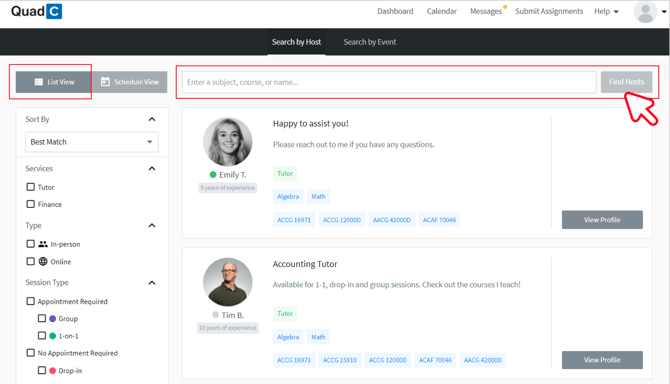
This search functionality is built to support scalable academic services within the QuadC ecosystem, helping institutions provide structured, trackable support aligned with course performance and retention goals.
Review Host Profiles Before Booking
Click View Profile to expand a host’s full profile.
Inside the profile, you can review:
-
Academic focus areas
-
Session formats (group, drop-in, or standard sessions)
-
Availability calendar
-
Additional notes or guidance from the host
Reviewing profiles ensures you select the right support option. This aligns with QuadC’s adaptive learning model, where students receive targeted help based on subject and course needs.
Select an Available Time Slot
Scroll to the host’s availability calendar and click on a date and time.
Time slots are colour-coded to help you quickly understand session types:
| Color | Meaning |
|---|---|
| Purple | Host is available for a group session |
| Green | Host is available for the full or partial time slot |
| Pink | Host is available for a drop-in session |
| Grey | Session is full, expired, or unavailable |
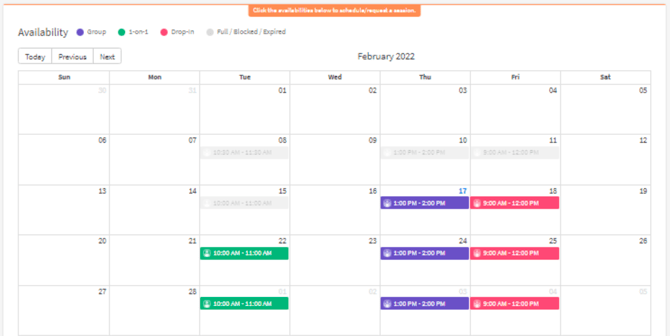
This clear visual system helps you book confidently and reduces scheduling confusion. It also supports institutions using QuadC’s scheduling and classroom features to manage high volumes of student appointments efficiently.
Complete Required Fields and Confirm Your Booking
After selecting a time slot:
-
Fill out all required booking fields
-
Add relevant session details
-
Attach files if you want to share materials in advance
-
Click Book Session
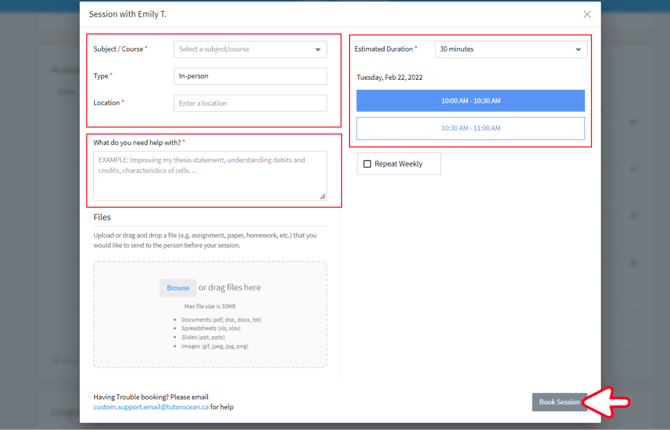
Attaching files allows your host to prepare in advance, which leads to more focused and productive sessions. This feature connects directly with QuadC’s broader learning environment, enabling structured, outcome-driven academic support.
Once booked, your session is officially scheduled within the QuadC Connect.