
QuadC Adaptive LMS helps you quickly build, organize, and deliver guided learning experiences using existing course materials. With QuadC Adaptive LMS, you can create AI-powered courses, generate quizzes, manage student access, schedule learning timelines, and support learners with built-in AI assistance, all within the QuadC AI platform.
Understand What QuadC Guided Courses Is
QuadC Adaptive LMS is a lightweight LMS embedded within QuadC AI. Unlike standalone platforms, which require lengthy implementation and offer only limited or add-on AI support, Adaptive LMS is AI-native from the ground up. It is designed for fast deployment and works as an extension, not a replacement for your existing systems.
Key differentiators at a glance:
|
Feature |
QuadC Adaptive LMS |
Traditional LMS |
Course Builders |
|
Deployment Speed |
Fast |
Slow |
Fast |
|
AI Learning Support |
AI-Native |
Limited / Add-on |
Minimal |
|
Integration |
Standalone/ Extension of Your Learning System |
Main Platform |
Standalone |
|
Learning Insights |
Admin + Sentiment Analysis |
Admin only |
Basic Analytics |
QuadC Adaptive LMS is suited for two deployment scenarios:
- Standalone "LMS Lite" for smaller institutions or subject-matter expert (SME) programs
- Specialized program add-on for large-scale institutions already using a Learning Management System (LMS)
Build Courses From Existing Materials
Create a course by uploading your existing learning content directly into QuadC AI. This allows you to launch structured learning experiences without rebuilding content from scratch.
To get started:
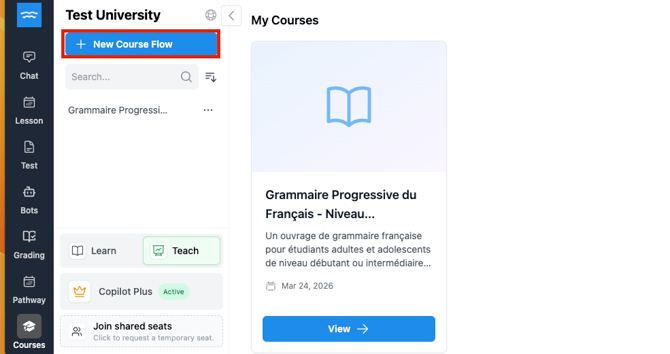
- Navigate to Courses icons on teach mode within your QuadC AI platform
- Select New Course Flow
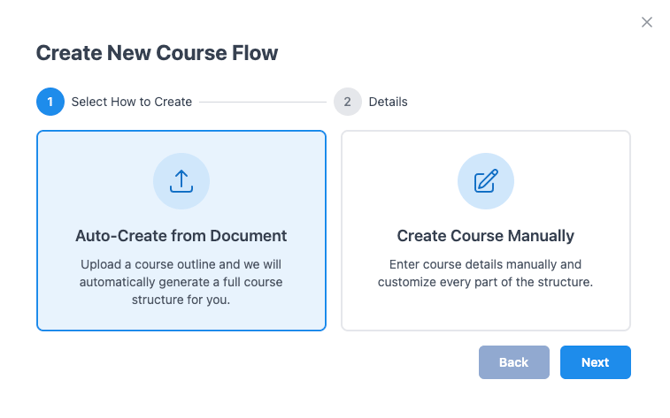
- Choose Auto-Create from Document or Create Course Manually
- Upload a course outline or syllabus
- QuadC AI automatically generates a full course structure for you
Two ways to create a course:
- Auto-Create from a Document — Upload a course outline or syllabus and QuadC AI automatically generates a full course structure for you
- Create Course Manually — Enter course details yourself and customize every element of the structure
Organize Course Content into Modules and Sections
Once your course is created, you can organize your materials into structured learning modules. Each module contains sections, and each section can hold learning content, reference materials, and assessments.
- Upload existing course documents directly into sections
- Add section titles and learning objectives
- Attach reference PDFs or supporting files to individual lessons
- Reorder modules and sections to control the learning flow
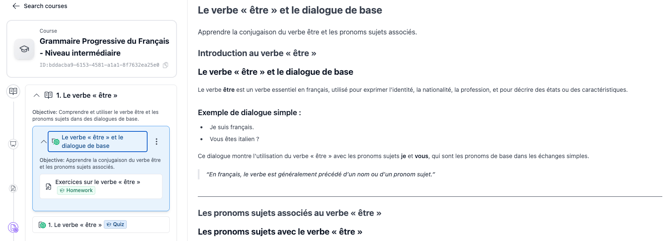
This helps learners navigate content more easily while giving you more control over course progression.
Configure Section Availability
You can define a release date for any section, giving you precise control over when students can access each part of the course:
- Open the section menu (three-dot icon) and select Settings
- Set the date the section becomes available to students
- Both you and your students will see the configured release date displayed in the course
This is especially useful for pacing cohorts through a course in sequence or simulating a structured semester timeline.
Generate AI-Powered Quizzes
QuadC AI can generate quizzes directly from your course materials.
- Generate from: Module content or uploaded files
- Question types: Multiple Choice, True / False, fill in the blank, and short answer
- Timing controls: Scheduled windows, countdown timers, attempt limits
For full setup instructions, see Generate AI-Powered Quizzes in QuadC Adaptive LMS.
Schedule Course Start and End Dates
You can control when your course opens and closes directly within QuadC AI. By default, no schedule is required, courses are open as soon as they are published.
- Start date: Automatically opens the course at a scheduled time
- End date: Automatically closes the course when the window expires
- Section release dates: Gradually unlock content to control pacing
- Quiz time limits: Simulate structured test environments
Invite Students to Your Course
Once your course is published, you can invite students from the Course Title Screen.
- By email: Enter one or multiple addresses (comma or space separated)
- By CSV: Upload a file with an email column (optional name column supported)
- Auto-detection: Duplicates are skipped automatically
- Delivery: Each student receives an email with course details and a sign-up link
Preview Your Course as a Student
Before publishing or sharing your course, you can experience it exactly as your students will by switching to Learn Mode inside QuadC AI.
- In Learn Mode, you see the full student interface: modules, quizzes, AI chat, and section flow
- Your activity in Learn Mode is excluded from course analytics so it does not affect student progress data
- Use this to verify content flow, quiz timing, and the overall learning experience before your cohort begins
Manage Active and Archived Courses
QuadC AI gives you flexible controls for maintaining, archiving, and duplicating courses over time.
- Archive: Closes enrollment and freezes student progress while preserving all data; course remains fully editable
- Duplicate: Copies course content into a new course with no enrolled students, ideal for recurring cohorts
See Manage Your Course Lifecycle in QuadC Adaptive LMS for more details.
Deliver AI-Supported Learning Experiences
QuadC Adaptive LMS combines lightweight course management with AI-native learning support inside QuadC AI products.
Key capabilities include:
- AI-powered course creation
- Built-in quiz generation
- Flexible scheduling controls
- Guided learning pathways
- Student enrolment management
- AI-supported learner assistance
- LMS integration support
QuadC AI also integrates with learning ecosystems like:
- Canvas
- Moodle
- Blackboard
- D2L Brightspace